
To measure the loudness of a song on iPhone, load the exported file into a LUFS meter that reads the file and measures it to ITU-R BS.1770 (EBU R128). Read two numbers, the integrated LUFS of the whole song and its true peak in dBTP. Compare them with the service you release on. Spotify plays at −14 LUFS and asks for peaks no higher than −1 dBTP.
The rest of this guide covers what a LUFS checker should show, why the microphone gives the wrong answer, and how to read the numbers with worked examples.
What a LUFS checker should show
A LUFS meter, checker or analyzer can mean several things. For a finished song, look for these readings.
- Integrated LUFS to ITU-R BS.1770 or EBU R128. This is the whole-song number streaming services use. It needs K-weighting and gating, with an absolute gate at −70 LUFS and a relative gate 10 LU below the ungated level.
- True peak in dBTP, estimated by oversampling. BS.1770 uses 4× oversampling. A sample peak reading in dBFS can miss peaks between samples.
- Short-term (3 seconds) and momentary (400 ms) loudness, if you want to see how loudness moves through the song.
- Support for the formats you bounce to, such as WAV, AIFF, FLAC, MP3 and AAC.
If a meter shows only one "loudness" figure and doesn't say which standard it follows, you can't compare its number with a streaming target. The guide to what LUFS is explains integrated, short-term and momentary readings in detail.
Measure the file, not the microphone
A meter that listens through the iPhone's microphone measures the sound in the room. The reading depends on the speaker, its volume, the distance and the room. Turn the speaker up and the reading rises, though the file hasn't changed.
Streaming services measure the file you upload. To predict what they will do, measure that same file. A file meter gives the same reading every time, on headphones, on the phone speaker or with the sound off.
Measure the whole song too. A loop of the chorus reads louder than the full track, because the integrated reading averages verses, breakdowns and the outro as well.
How to measure a song's LUFS with ABSeq
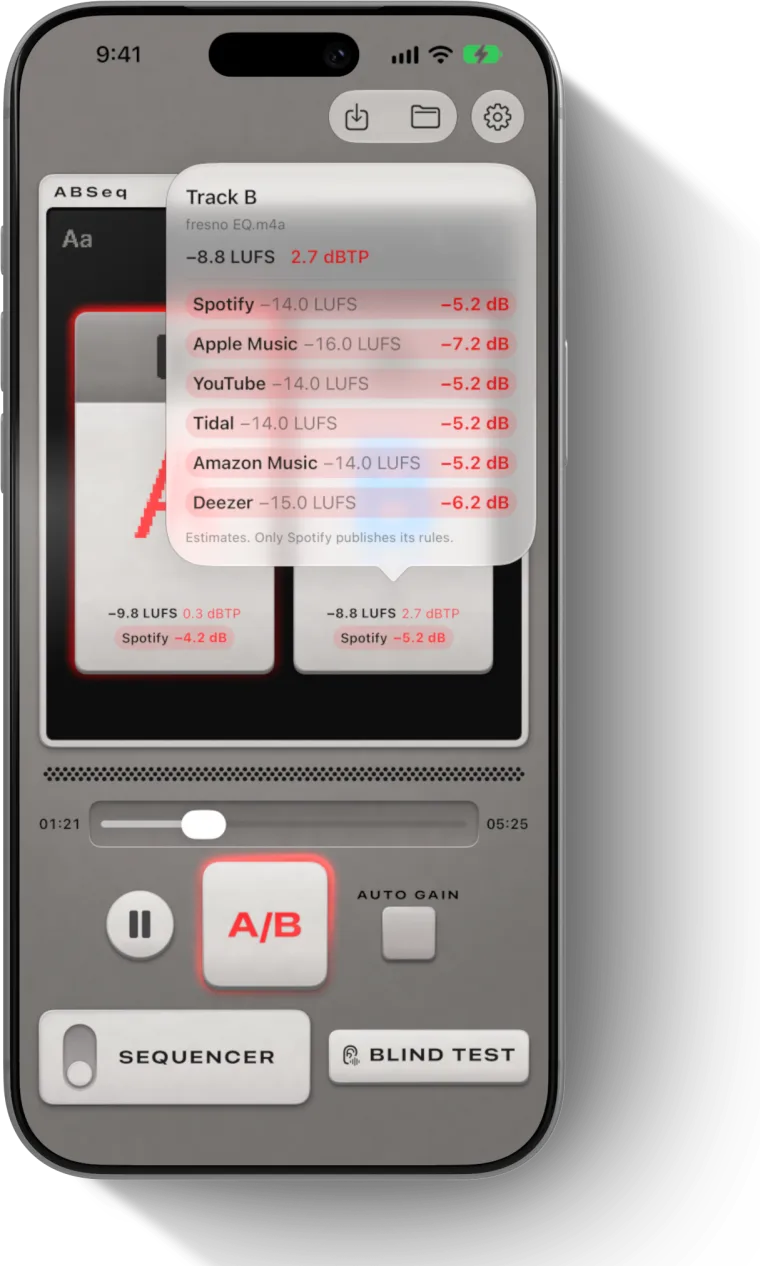
ABSeq is an iPhone and iPad app that measures every file you load and shows the result on the track's tile. It reads files where they are and analyzes them on the device, so your music isn't uploaded anywhere.
- Export the song from your DAW and save it to the Files app, for example in iCloud Drive. If it arrives by AirDrop or Mail, save it to Files first.
- Open ABSeq and load the file onto a track. It opens WAV, AIFF, AIFC, CAF, FLAC, MP3, M4A and AAC.
- Wait for MEASURING to finish. The tile then shows integrated LUFS and true peak in dBTP. The true peak turns red above −1 dBTP.
- Tap the readout to see how much Spotify, Apple Music, YouTube, Tidal, Amazon Music and Deezer would change the level.
- To see loudness across the song, open the LUFS graph (Pro). It plots short-term loudness against a −14 LUFS line, and the readout shows short-term S, momentary M and integrated I.
Load up to four versions to measure a mix, a master and two alternatives side by side. Auto Gain turns every track down to the quietest one, so you can hear them at matched loudness. The help page on track readouts describes each number on the tile.
How to read the result
The integrated number tells you how much a service will turn the song down. Subtract the service's target from your reading to get the change.
A loud master
A master reads −9.2 LUFS integrated and −0.3 dBTP true peak.
- Spotify turns it down 4.8 dB, to −14 LUFS.
- Apple Music, at about −16 LUFS, turns it down about 6.8 dB.
- The true peak is above −1 dBTP, and the master is louder than −14 LUFS. Spotify recommends −2 dBTP for masters that loud, so this one has 1.7 dB too little headroom.
The loudness isn't rewarded. After the cut, it plays at the same level as a −14 LUFS master. The peak needs fixing. Spotify asks for that headroom because inter-sample peaks can clip when a service encodes the file to AAC, MP3 or Ogg. The true peak guide explains how to fix it.
A quiet master
A master reads −16.5 LUFS integrated and −3.0 dBTP true peak.
- Spotify, on its default setting, can turn it up until the peaks reach −1 dBTP. That is 2 dB, so it plays at −14.5 LUFS, half a dB below other tracks.
- YouTube turns loud tracks down only, so it plays at −16.5 LUFS, about 2.5 dB below a −14 LUFS track.
- Apple Music, at about −16 LUFS, turns it down about 0.5 dB.
Whether that is acceptable is a choice about the song. The LUFS targets for each streaming service list every service and whether it turns quiet tracks up.
Limits of a file meter
A file meter reads a finished bounce. To check a change, export a new bounce and load it. The reading is only as current as the file.
The integrated number is a single average. Two masters at −12 LUFS can sound different in loudness from moment to moment if one has quiet verses and a loud chorus. Look at short-term loudness across the song, or the loudness range (LRA), to see that difference.
Finally, the numbers for services other than Spotify are estimates. Only Spotify publishes its rules in full. Apple Music, YouTube, Tidal, Amazon Music and Deezer may land a dB or so away from the figure a meter predicts.
Questions
Can I measure LUFS on my iPhone?
Yes. Save the exported song to the Files app and load it into a meter that reads the file to ITU-R BS.1770. Read the integrated LUFS of the whole song and its true peak in dBTP. Don't use the microphone, because it measures the speaker and the room, not the file.
What should a LUFS checker show?
At minimum, integrated LUFS measured to ITU-R BS.1770 or EBU R128, and true peak in dBTP with oversampling. Short-term and momentary readings help you see how loudness moves through the song. A single unlabelled loudness figure can't be compared with a streaming target.
How do I measure the loudness of a song?
Measure the whole exported file with a LUFS meter and read the integrated value. A song at −9 LUFS integrated is 5 dB louder than Spotify's −14 LUFS target, so Spotify turns it down 5 dB. Check true peak at the same time and keep it at or below −1 dBTP.
Does the phone's volume change the LUFS reading?
Not with a file meter. It reads the samples in the file, so the reading stays the same at any volume and on any output. A meter that listens through the microphone does change with volume, which is why it can't predict what a streaming service will do.